

After publishing the post about Variable Library in Microsoft Fabric Notebooks, I received some feedback requesting a follow-up blog post to explain how to use it in a Data Pipeline or Copy Job. This can be a bit “tricky” when you want to parameterize connections in Fabric pipelines using the Variable Library, because you’re not passing the connection name to the pipeline. Instead, you need to pass the GUID of the connection.
If you are not familiar with the idea of Variable Library in Fabric, I would recommend you to read the post Variable Library in Microsoft Fabric Notebooks and Get started with Variable libraries – Microsoft Fabric | Microsoft Learn.
One of the most common challenges in building data pipelines is managing connections across different environments. For example, in development you might copy data from a Dev Database, but in production the source should be a Prod Database. If you hard-code these connections directly into each pipeline, you’ll quickly end up duplicating work, and every environment change means editing and re-publishing your pipelines.
Microsoft Fabric’s Variable library (preview) offers a much cleaner solution. Instead of locking connections into the pipeline, you store the connection GUIDs and related properties (like workspace IDs or object names) in a central library. The pipeline then references these variables at runtime. With this setup, switching from Dev to Test to Prod becomes as simple as activating a different value set in the library — no pipeline edits required.
Here’s a clear, end‑to‑end walkthrough for using a Variable library to parameterize (replace) the Connection in a Copy data activity. This lets you swap connections (Dev/Test/Prod, or different sources) without editing the pipeline itself — great for CI/CD and environment promotion.
1. Getting the GUID of the connnections in all environments
1.1 In Fabric Settings, go to the Settings gear → Manage connections and gateways.

1.2 Right click the connection you want, and go to Settings.

1.3 In the connection Settings panel, copy the connection ID – this is the GUID of your connnection. Do this for the connection in your higher environment, e.g. test and production.

2. Setting up Variable library
2.1 In your Fabric workspace, click New item → Variable library (preview), or open your existing Variable Library.
2.2 Click New variable and add variables for swapping the Copy activity’s Connection. Remember to choose GUID as data type.
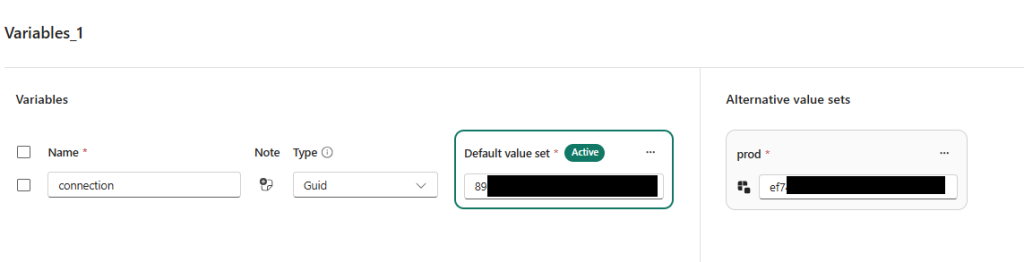
Add Alternative value sets for Prod and put the corresponding GUIDin each set. Mark the one you use in this workspace as Active.
3. Reference the library variables in your pipeline
3.1 Open (or create) your Data pipeline, then add a Copy data activity to the canvas.

3.2 At the bottom properties panel, find Library variables (preview) and click + New.
3.3 Choose your Variable library and pick the variable(s) you added. Assign a friendly Reference Name (e.g. source_connection)

4. Link the Copy data activity to use the library variable(s)
4.1 In Source (or Destination) settings of the Copy data activity, locate the Connection field.
Click Use dynamic content, then in the Expression builder, open … → Library variables (preview) and select your reference (e.g., source_connection).

4.2 Fabric will insert an expression like :
@pipeline().libraryVariables.source_connection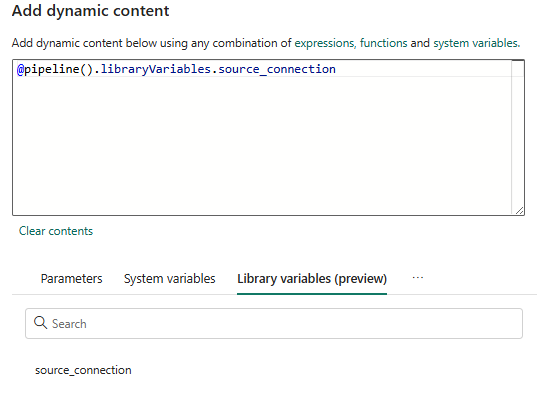
4.3 Complete other fields in the Copy data activity that must be parameterized
5. Validate, Save and Run
5.1 Validate the pipeline, Save it and Run. Here you go! This pipeline is now using variable to control the connection.
What are the benefit?
- Centralized management – Keep all environment-specific values in one place rather than scattered across pipelines.
- Seamless environment switching – Use alternative value sets in the Variable library for Dev, Test, and Prod; pipelines automatically pick up the right settings.
- CI/CD friendly – Works perfectly with Fabric’s Deployment pipelines; each stage can have its own active value set.
- Reduced errors – No more forgetting to update a connection string or mismatched environments; the pipeline just reads from the library.
- Git-enabled – meaning your configuration is version-controlled and reviewable alongside your code.